Using the Control Panel to Navigate Around the Activity Screen
To begin, select an activity from the  drop down menu.
Use the commands below to navigate the robot arount the screen.
| Basic Controls |
Function / Description |
    |
Directional arrows to code a path for Tuff-Bot to follow.
> Commands appear below the control panel in the command area as you select them.
> To rearrange commands, click and drag the buttons in the command area to change their order.
> To delete a command, click any command already in the command area, then press  to delete it. to delete it. |
 |
Press Pause to make Tuff-Bot pause for .5 seconds. |
 |
Press GO to start (and also stop) the program for Tuff-Bot to follow. |
 |
Press Clear to start over and create a new program. |
 |
Press Home to return Tuff-Bot to its starting position. |
  |
Press Bluetooth to connect the emulator to a physical Tuff-Bot. When connected, the button will glow and your program runs simultaneously on the robot and on the screen.
> Note: The Bluetooth button appears only in browsers that support the Web Bluetooth API. |

 |
Avoidance Sensor – behaves as follows:
> When not lit, the Avoidance Sensor is OFF.
> When glowing green, the Avoidance Sensor is ON.
As Tuff-Bot moves and its front bumper encounters an obstacle, it will back up, turn right, go forward, then turn left, then continue its journey. The steps that Tuff-Bot follows during the avoidance maneuver will temporarily replace the code you entered. Tuff-Bot has no rear sensor, so if touches an obstacle while backing up, it will remain there until it can execute further commands (such as forward or turn) in its instruction list. |

 |
Speed – behaves as follows:
> When not lit, Tuff-Bot will pause between each step in its program.
> When glowing green, Tuff-Bot will not pause between commands.
> When blinking, Tuff-Bot will not pause between commands and will turn more quickly. |
 |
Press Save to save your code. The file is saved to your Downloads folder. |
 |
Press Load to get your work back. |
 |
When checked, the Talk to me! button speaks the name of the activity and the commands as they are run. |
| Advanced Level Controls |
Function / Description |
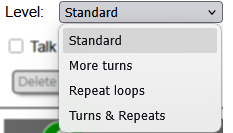 |
> The Standard level is the default starting point for Tuff-Bot coding. The controls introduced in the Standard level are available in all levels.
> The More turns level adds  and and  buttons for 90-degree turns. buttons for 90-degree turns.
> The Repeat loops level adds  [Repeat Start] and [Repeat Start] and  [Repeat End] buttons allowing you to repeat a sequence of commands. Place these buttons around the commands you want Tuff-Bot to repeat. [Repeat End] buttons allowing you to repeat a sequence of commands. Place these buttons around the commands you want Tuff-Bot to repeat.
> The Turns & Repeats level adds BOTH sets of buttons.
Press the [Repeat Start] button repeatedly to cycle through 8 repetitions, then back to 1. Your selected repeat count appears at the top of the button in the control panel (for example,  or or  ). ). |
Have fun!
info
What is an Online Emulator?
- A friendly, classroom-ready way to introduce the robot's moves to the whole group before students work with the floor robots individually.
- A space to practice robot coding and explore various themes with different activity screens.
- A way for all students to code at once.
Learn More About Tuff-Bot
Discover all the features of both the physical and virtual Tuff-Bot by visiting the Tuff-Bot Resources page.
Beyond the Emulator – Explore Resources | Robots and Accessories
Whether you’re exploring coding for the first time or teaching it every day, Terrapin offers free resources to help you get more from every lesson. Browse classroom activities, teaching tips, programming challenges, curriculum, and hands-on coding tools, all designed to make learning engaging and fun!
Keep current with coding and robotics – periodic Email Newsletters from Terrapin
Learn more and Subscribe | Archives
treasure-island
Treasure Island
Can you navigate Tuff-Bot to the chest of Gold coins?
Explore the rest of the island, too. Visit all the objects you can.
Go to the:
- starfish
- seashells
- anchor
- compass
- palm trees
- barrel
- pirate’s spyglass
- chest of gold
Note that obstacle avoidance does not work in this activity.
Like the Tuff-Bot emulator? Using the actual Tuff-Bot can be even more exciting and fun!
croquet
Play Croquet!
Can you drive Tuff-Bot through all the croquet wickets in the right order?
This isn’t the way an official croquet game would be set up, but it will be fun to play anyway!
Note that obstacle avoidance does not work in this activity.
Like the Tuff-Bot emulator? Using the actual Tuff-Bot can be even more exciting and fun!
rocks
Avoid the Rocks!
Choose the number of rocks you want on your mat.
Then see how many rocks you can go around without triggering the obstacle avoidance feature!
Like the Tuff-Bot emulator? Using the actual Tuff-Bot can be even more exciting and fun!
mini_golf
Play Miniature Golf!
Can you get Tuff-Bot to the hole at the top?
Note that obstacle avoidance does not work in this activity.
Like the Tuff-Bot emulator? Using the actual Tuff-Bot can be even more exciting and fun!
square_mat
Explore with Tuff-Bot!
This Tuff-Bot can draw!
To erase your drawing, reload the window.
How many letters of the alphabet can you draw?
You many shapes can you draw?
Connect Tuff-Bot to Bluetooth and control it remotely!
100-grid
Fun With Math!
Make up games to play with Tuff-Bot in this grid of numbers from 1 to 100!
Send Tuff-Bot to an odd number and then an even number that is at least 2 rows and columns away.
Send Tuff-Bot to two different numbers whose digits add up to 10.
Click the dice to roll them. Add up the numbers, then code Tuff-Bot to go to the total.
Roll the dice and multiply them (or some of them). Send Tuff-Bot to the answer.
You’ll think of more things to try!
This mat idea was sent to us by Laurie Guyon in New York.
Read her Customer Story about the STEAM Bus her BOCES is using to give students opportunities to explore coding.

 Tuff-Bot Online Emulator